Hide In Drawings Controls
Device habits, camera discipline, and HUD tips for EX10 Hide’s drawing duel.
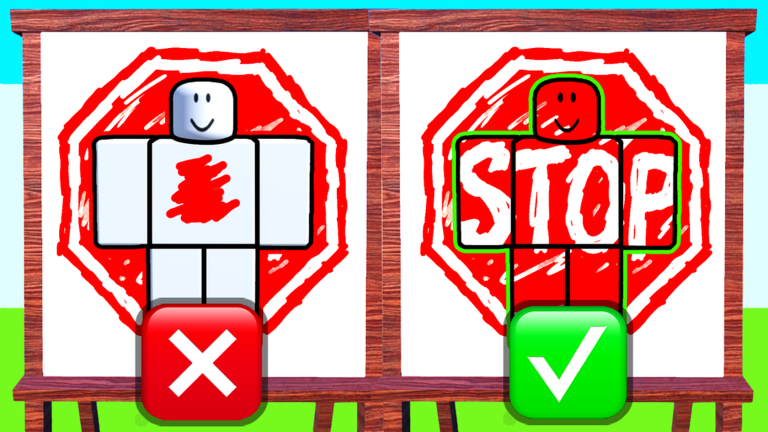
Controls overview
Hide In Drawings runs on Roblox, so your base movement and camera follow the device settings you already use in other experiences. What matters here is how you move and look during a mutual hunt inside a still drawing. This page turns default Roblox inputs into match habits that pair with How to Hide and How to Spot.
Exact key labels can shift after Roblox client updates. Treat the tables as intent maps, then confirm bindings in Roblox Settings → Controls before a ranked-feeling lobby.
PC controls mindset
| Intent | Typical binding | Match habit |
|---|---|---|
| Move | WASD | Short steps after you commit to a hide — avoid skating across busy ink |
| Camera | Mouse | Slow edge pans; stop before you call a spot |
| Jump / climb | Space | Rarely useful inside flat drawings; do not bounce and reveal yourself |
| Sprint | Shift (if enabled) | Save bursts for repositioning between phases, not during freeze-camouflage |
| Roblox menu | Esc | Open only between rounds so you keep vision |
On PC, your biggest advantage is precise camera arcs. Practice sweeping left-to-right, then top-to-bottom, without spinning. Seekers who whip the mouse create motion blur for themselves and miss silhouette breaks.
Mobile controls mindset
| Intent | Typical control | Match habit |
|---|---|---|
| Move | Left thumbstick | Feather the stick; micro-drifts are easy to spot on still art |
| Camera | Right drag | Use two short pans instead of one long swirl |
| Jump | Jump button | Ignore unless a drawing has literal ledges |
| HUD buttons | Side icons | Learn Codes / Shop / Cosmetics positions in lobby before hunting |
Mobile players lose rounds by covering the art with their thumbs. Hold the device so your camera finger stays on the outer third of the screen. If your phone supports higher FPS, enable it — smoother pans help you notice jagged edges that do not belong.
Console controls mindset
| Intent | Typical control | Match habit |
|---|---|---|
| Move | Left stick | Deadzone discipline — stop the stick fully when hidden |
| Camera | Right stick | Lower camera sensitivity one notch for hunting |
| Confirm / interact | A / Cross | Pause a half-second before claiming a spot |
| Menu | Options / Menu | Close cosmetics mid-round; vision beats shopping |
Console sensitivity defaults are often too snappy for a picture-hunt game. Lower look speed until you can track a thin line across the canvas without overshooting.
HUD and menu locations
After the lobby loads, identify these panels once so you never hunt for them mid-round:
- Codes / Rewards / Gift — used on the Codes Hub and the How to Redeem Codes walkthrough.
- Shop / Cosmetics — money sinks covered in Cosmetics & Money.
- Settings — Roblox system menu for volume, graphics, and control remaps.
If a button is missing, you may still be loading, spectating, or on a collapsed mobile layout. Rotate the device or rejoin once.
Camera drills (five minutes)
- Enter a match and spend the placement phase only framing busy regions — no sprinting.
- During the hunt, clear the drawing in four passes: outer frame, mid band, focal subject, leftovers.
- After you win or lose, note whether motion, color clash, or a bad silhouette gave the round away.
- Repeat with the opposite focus (hide-only or seek-only) using the dedicated guides.
Graphics and readability settings
- Prefer stable frame rate over max shadows if your device stutters while panning.
- Keep UI opacity readable; tiny HUD text causes missed shop and code buttons.
- On low-end mobiles, reduce quality one step so ink edges stay sharp.
Common control mistakes
Holding sprint while “hidden.” Even small avatar bobble reads as life against a still drawing.
Opening the shop mid-hunt. You lose camera time and often get spotted first.
Maxing camera sensitivity. Overshooting corners means you never finish a clean four-pass clear.
Fighting Roblox shift-lock habits from other games. This experience rewards smooth free-look more than combat lock-on.
Accessibility and comfort
If you use remapped controls, custom deadzones, or larger UI scales, set them before your first serious session. Hide In Drawings is a perception duel — comfort settings are competitive settings. Players who fight their own inputs lose to calmer opponents with worse “aim” but better habits.
Related pages
- Getting Started — round flow
- How to Hide — placement after you can stand still
- How to Spot — seeker camera routes
- Best Hiding Spots — where to stand once control feels automatic
- Reading Drawings — how canvas styles change what you look for
Master stillness and slow pans before you grind cosmetics. Controls are the quiet skill that makes every other Hide In Drawings guide work.
Frequently Asked Questions
Quick answers to the most common questions.
What are the Hide In Drawings controls on PC?
Use standard Roblox WASD movement and mouse look. Focus on short steps while hidden and slow edge-to-edge camera pans while seeking.
Do mobile controls work well for Hide In Drawings?
Yes. Feather the move stick, keep camera drags short, and learn HUD icon positions in the lobby before hunting.
Should I change camera sensitivity?
Many console and high-sens PC players should lower look speed so they can clear a drawing without overshooting thin lines.
Where is the codes button?
Look for Codes, Shop, Gift, or Rewards on the side of the HUD after the lobby loads. Full steps are on How to Redeem Codes.